A caller who can’t reach the right person quickly is a caller you risk losing. That single moment of friction, pressing zero into silence or sitting through a confusing menu, costs sales teams deals and support teams trust. A well-planned justcall ivr menu setup solves this by greeting every caller, presenting clear choices, and routing them to the correct department or agent in seconds.
Key Takeaways:
- A proper justcall ivr menu setup routes every caller to the right department automatically, reducing missed calls and wait times.
- You can build a working IVR menu in JustCall in under an hour once your call flow, greetings, and team assignments are planned in advance.
- Multi-level IVR menus let larger teams create sub-menus for departments like sales, support, and billing without overwhelming callers.
- After-hours and holiday routing ensures no lead or customer hits a dead end when your team is offline.
- Short, clear menu prompts (ideally five options or fewer) consistently outperform long, confusing menus.
- Testing your IVR with real call data and refining it over time is what separates a functional menu from a high-performing one.
This guide walks you through the entire process, from the prerequisites you need before you start to building multi-level menus, configuring after-hours routing, and optimizing performance once your menu is live. Whether you’re configuring your first phone system or refining an existing one, you’ll find a practical, repeatable approach here. If you’re still evaluating the platform itself, it helps to first understand what JustCall is and how sales and support teams use it before diving into menu configuration.
What is a JustCall IVR Menu?
A JustCall IVR menu is an interactive voice response system that greets inbound callers and lets them choose where their call goes by pressing a number on their keypad. Instead of every call landing in one general inbox, the IVR acts as an automated receptionist, sending callers to sales, support, billing, or a specific agent based on their selection.
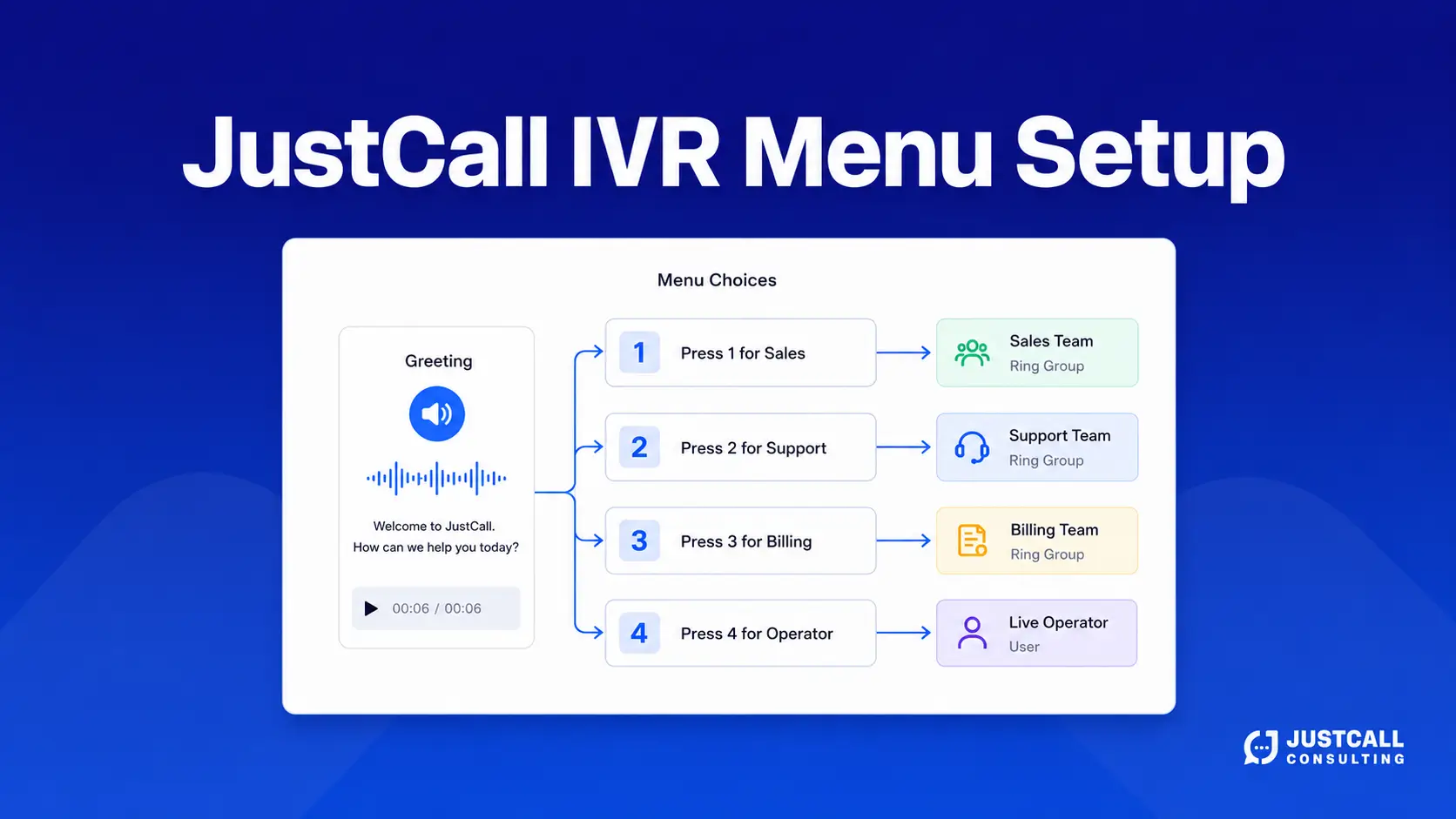
In practical terms, the IVR plays a recorded greeting such as “Press 1 for sales, press 2 for support,” then connects the caller to the matching destination. That destination can be an individual agent, a ring group, a call queue, a voicemail box, or even another menu. The result is faster resolution for callers and a more organized inbound flow for your team.

IVR menus are a core feature of business phone systems because they handle call distribution without human intervention. For sales and support teams, that means fewer dropped calls, shorter hold times, and a more professional first impression.
Why IVR Menu Setup Matters for Sales and Support Teams
An IVR menu is more than a convenience feature. It directly affects how many calls your team answers, how quickly customers get help, and how leads experience their first interaction with your business.
For sales teams, speed to connection matters. A prospect who reaches a live rep on the first try is far more likely to convert than one who navigates a maze of transfers. For support teams, accurate routing reduces repeat explanations and frustrated customers, because callers reach someone equipped to help on the first attempt.
The benefits of a thoughtful IVR setup include:
- Faster routing that connects callers to the right person without manual transfers.
- Reduced missed calls because overflow can route to queues, voicemail, or backup agents.
- A professional brand impression from a clear, branded greeting.
- Better workload distribution across agents and departments.
- 24/7 coverage through after-hours and holiday routing rules.
When your menu is built well, callers rarely notice it, which is exactly the point. The system quietly does its job, and your team spends less time fielding misdirected calls.
What You Need Before Starting Your JustCall IVR Menu Setup
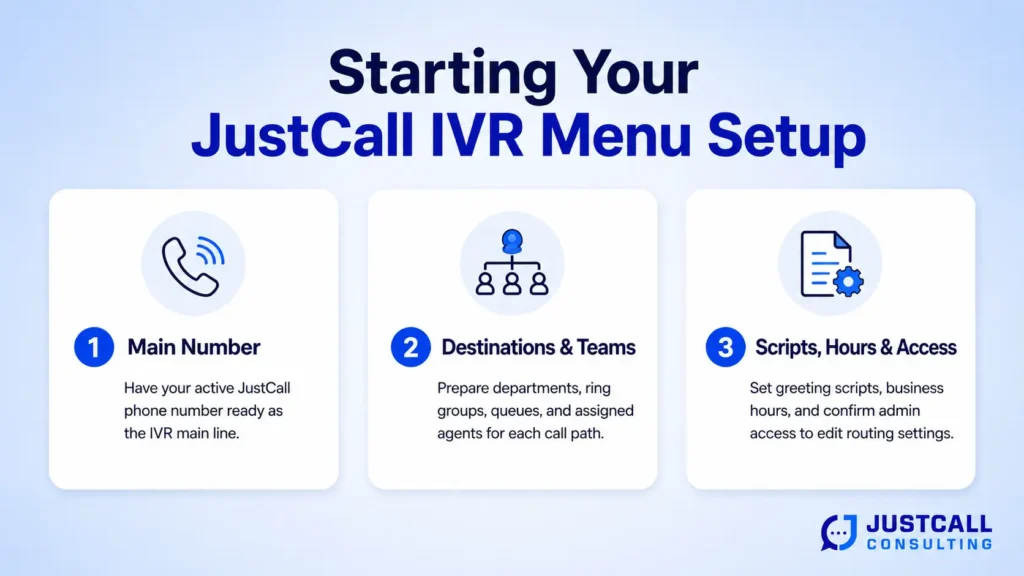
Preparation makes the actual configuration fast and frustration-free. Before you log in and start clicking, gather the building blocks your IVR will rely on.
- An active JustCall phone number that will serve as the main line for the IVR
. - A list of departments or destinations callers should be able to reach, such as sales, support, and billing.
- Assigned agents or teams for each destination, including any ring groups or queues.
- Greeting scripts for your main menu, after-hours message, and any sub-menus.
- Business hours defined for your team or region.
- Admin access to your JustCall account so you can edit numbers and routing settings.
Having voicemail boxes set up for each department in advance is also helpful, since unanswered calls need a clear fallback.
Map Your Call Flow Before You Build
The single most valuable step happens before you touch any settings: sketch your call flow on paper or in a simple diagram. Map out what the caller hears first, what options they can press, and where each option leads.
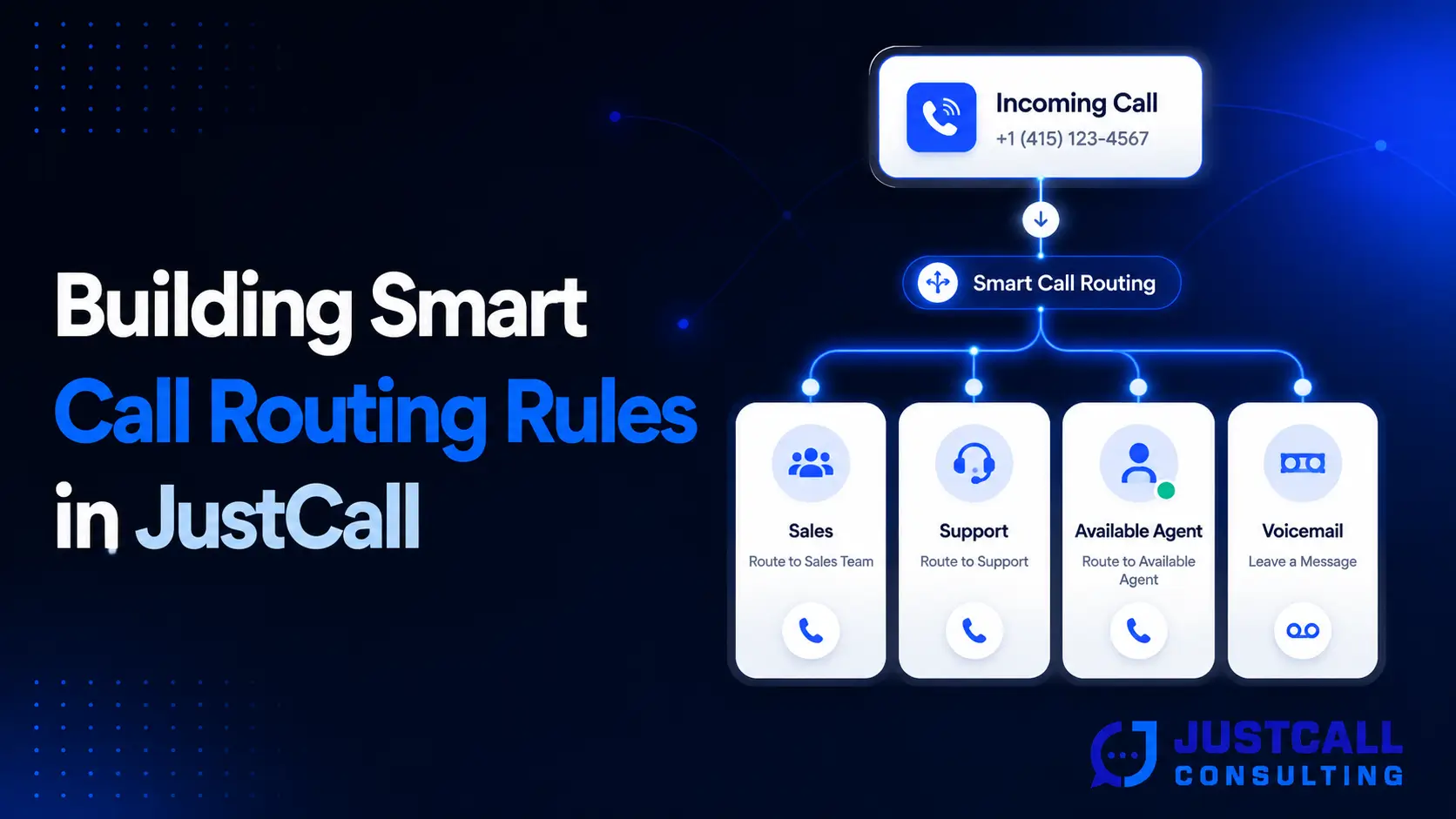
A simple flow might look like this: greeting plays, caller presses 1 for sales (routes to the sales queue) or 2 for support (routes to the support queue), and if no key is pressed, the call defaults to a general voicemail. Larger teams may need branches that lead to sub-menus. Planning this in advance prevents dead ends and makes the build itself straightforward.
JustCall IVR Menu Setup Step by Step
With your plan ready, the configuration itself is quick. Follow these steps in order to build a clean, working menu.
Step 1 — Open Your Number and IVR Settings
Log in to your JustCall account with admin access and navigate to your phone numbers. Select the number you want to attach the IVR to, then open its settings. Look for the call distribution or IVR option, which is where you’ll define how inbound calls behave. This is the foundation of your justcall ivr menu setup, so confirm you’re editing the correct line before continuing.
Step 2 — Record or Upload Your Greeting
Your greeting is the caller’s first impression, so keep it clear and concise. You can either record a greeting directly, use text-to-speech, or upload a professionally produced audio file. State your business name, then list the menu options in the order callers should hear them, for example: “Thank you for calling. For sales, press 1. For support, press 2.”
Keep the greeting under 20 seconds when possible. Long introductions cause callers to lose track of options.
Step 3 — Assign Keypress Options to Departments
Next, map each keypress to a destination. Assign 1 to sales, 2 to support, and so on, matching the order in your greeting. Each option can point to an individual agent, a ring group, a call queue, a voicemail box, or a sub-menu.
Be consistent: the number callers hear must match the number they press. Mismatched prompts are one of the most common sources of caller frustration.
Step 4 — Connect Queues, Agents, and Voicemail
For each keypress, define exactly who or what answers. Route high-volume departments to call queues so calls stack in order rather than ringing endlessly. Assign quieter destinations to specific agents or small ring groups. Most importantly, set a fallback for every option, usually voicemail, so no call goes unanswered.
If you want a deeper walkthrough of pairing menus with queues and operating hours, this companion guide on how to set up IVRs, call queues, and business hours in JustCall covers those connections in detail.
Step 5 — Save, Test, and Go Live
Save your configuration, then call the number yourself and test every single option. Press each key, confirm the call routes where it should, and verify that voicemail and fallback paths work. Only after every branch behaves correctly should you publish the menu and point your marketing or contact channels to that number.
How to Build a Multi-Level IVR Menu in JustCall
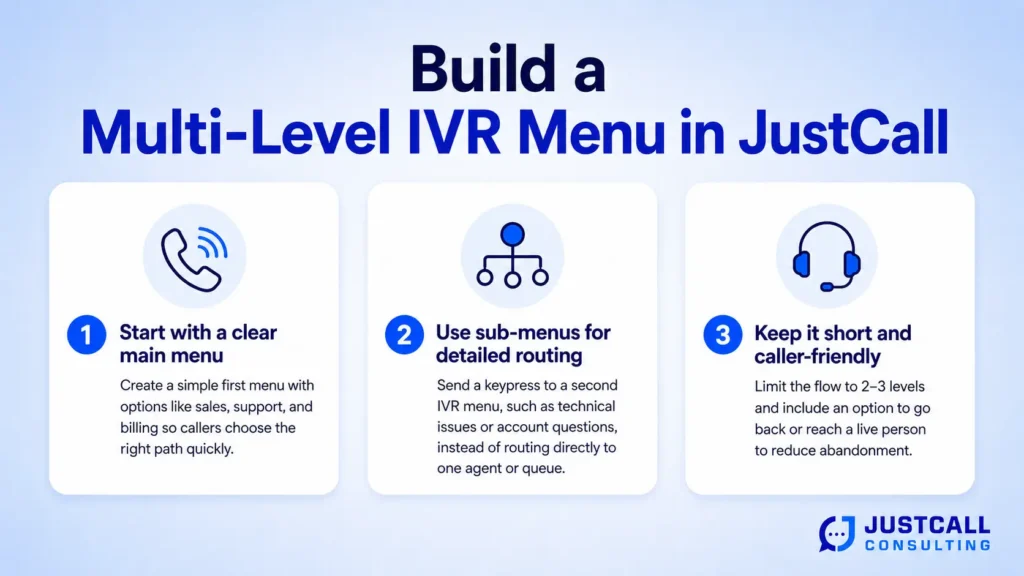
As your team grows, a single menu may not be enough. A multi-level IVR menu uses sub-menus to break complex routing into manageable layers, so callers make a series of simple choices instead of one overwhelming one.
For example, your main menu might offer sales, support, and billing. Pressing 2 for support could then open a second menu: “For technical issues, press 1. For account questions, press 2.” This keeps each menu short while still directing callers precisely.
To build one, set a keypress option in your main menu to point to another IVR menu rather than an agent or queue. Then configure that second menu the same way you built the first, with its own greeting and keypress destinations. The key discipline is restraint: avoid more than two or three levels, because every extra layer increases the chance a caller abandons the call. Each sub-menu should also include an option to return to the previous menu or reach a live person.
Routing Calls After Hours and on Holidays
An IVR that only works during business hours leaves callers stranded the rest of the time. Configuring after-hours and holiday routing ensures every caller gets a clear next step, even when your team is offline.
Within JustCall, you can define business hours and create separate routing rules for closed periods. During open hours, the IVR routes calls to your live menu. Outside those hours, it can play an after-hours greeting and send callers to voicemail, an emergency line, or a callback request. For the full configuration of operating-hours logic, see the guide on business hours and after-hours call routing.
The goal is to make sure no opportunity slips through. A missed call at 7 p.m. with no voicemail option is a lost lead. To eliminate those gaps entirely, it’s worth studying how to design a JustCall call flow that never drops a lead, which pairs naturally with strong after-hours rules.
JustCall IVR Best Practices and Common Mistakes to Avoid
A technically functional IVR can still perform poorly if it’s confusing or poorly structured. These best practices keep your menu efficient and caller-friendly.
Do the following:
- Keep menus short, ideally five options or fewer per level.
- Order options by frequency, placing the most-requested departments first.
- Use plain language in greetings rather than internal jargon.
- Always offer a path to a human, such as pressing 0 for an operator.
- Set a fallback for every keypress so calls never dead-end.
Avoid these common mistakes:
- Overloading the main menu with too many choices.
- Burying common requests under multiple sub-menus.
- Recording long, rambling greetings that lose the caller.
- Forgetting after-hours coverage, leaving off-hours calls unanswered.
- Skipping testing, which lets broken routing reach real customers.
Small refinements here, like reordering two options or trimming a greeting, often produce noticeable improvements in answer rates.
How to Test and Optimize Your IVR Menu
Launching your IVR is the beginning, not the end. The best-performing menus are refined over time using real call data, not assumptions.
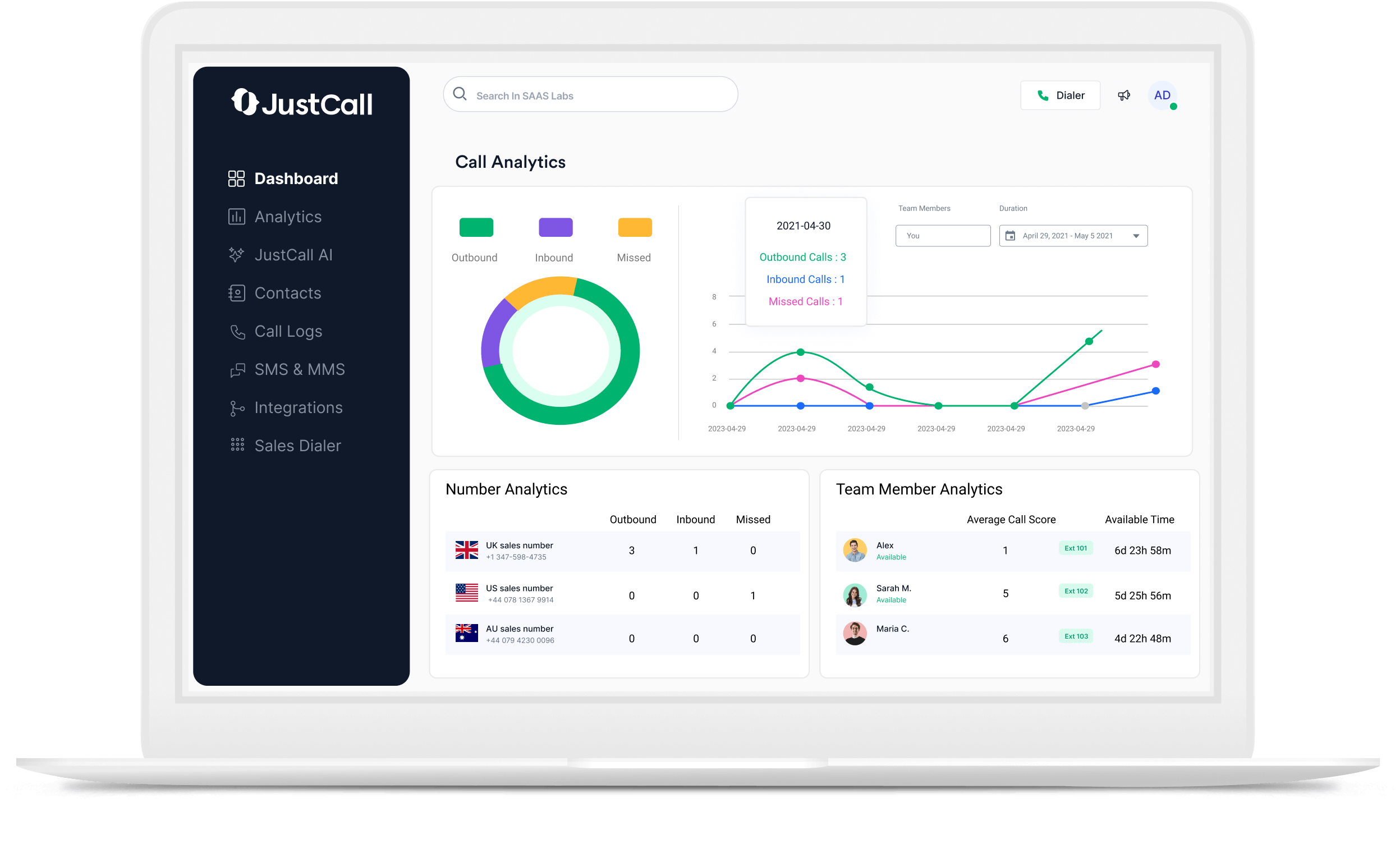
Start by reviewing where calls actually go and where they drop. Patterns in JustCall call analytics reveal whether callers abandon a particular menu, overload one department, or repeatedly press 0 to escape the system. Those signals tell you exactly what to fix, whether that’s reordering options, simplifying a sub-menu, or adding staff to a busy queue.
Pair that data with consistent call tagging and dispositions so you can see why callers chose each path and whether their issue was resolved. Over a few weeks, this combination of routing data and call outcomes shows you precisely how to streamline the menu. Treat optimization as an ongoing habit, revisiting your IVR quarterly or whenever your team structure changes.
Final Thoughts
A strong justcall ivr menu setup turns your phone system into a quiet, reliable engine that connects callers to the right people without friction. The process comes down to planning your call flow, recording clear greetings, mapping keypresses to the right destinations, covering after-hours scenarios, and refining the menu using real data over time.
Start simple, test thoroughly, and expand into multi-level menus only as your team’s needs grow. The teams that get the most from JustCall are the ones that treat their IVR as a living system rather than a one-time setup.
If you’d rather have an expert design and configure the entire flow for you, consider working with a specialist to hire a JustCall consultant who can tailor the setup to your goals. Review your current call flow this week and look for one routing gap you can close.